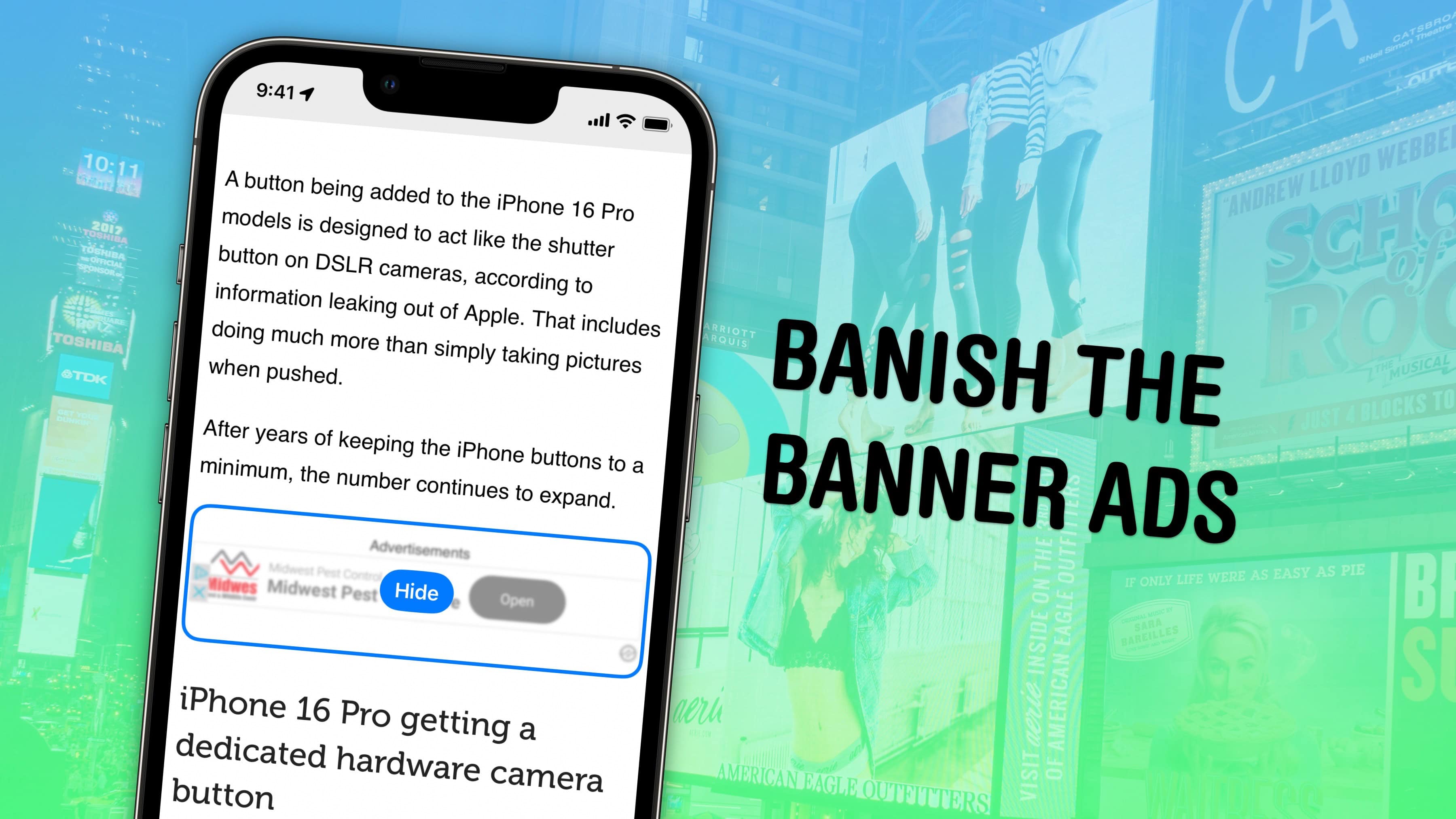
Safari’s Hide Distracting Items feature lets you remove ads from your iPhone, along with other elements on the page that irritate you. It doesn’t require an ad blocker or a paid extension — Apple built it right into the browser in iOS 18.
Hide Distracting Items is not an ad blocker per se. But if pop-ups and other items with no obvious close button pester you, Hide Distracting Items can come to the rescue. Here’s how to use it — keep reading or watch our video.
How to remove ads on iPhone with Safari’s Hide Distracting Items feature
The modern web is practically designed to make you crazy with distractions. Ad blockers and Safari’s elegant Reader mode can help, but they don’t zap everything.
Ad blockers usually work by blocking parts of a webpage embedded from other sites known to serve ads. But if the website you’re reading has its own pop-up box asking you to sign in or subscribe, the ad blocker might not catch it. Hide Distracting Items can step in here.
Why not use Reader mode instead for a distraction-free experience? Some websites are too clever. They try to block Reader from showing you the whole article in an effort to make you look at their ads. With the new Hide Distracting Items feature in Safari, you can hide them yourself.
Table of contents: How to remove ads on iPhone with Safari’s Hide Distracting Items feature
- Open Hide Distracting Items in Safari’s page menu
- Tap to remove ads and elements on the page
- Unhide what you’ve hidden
- More advanced features in Safari
Open Hide Distracting Items in Safari’s page menu
Screenshot: D. Griffin Jones/Cult of Mac
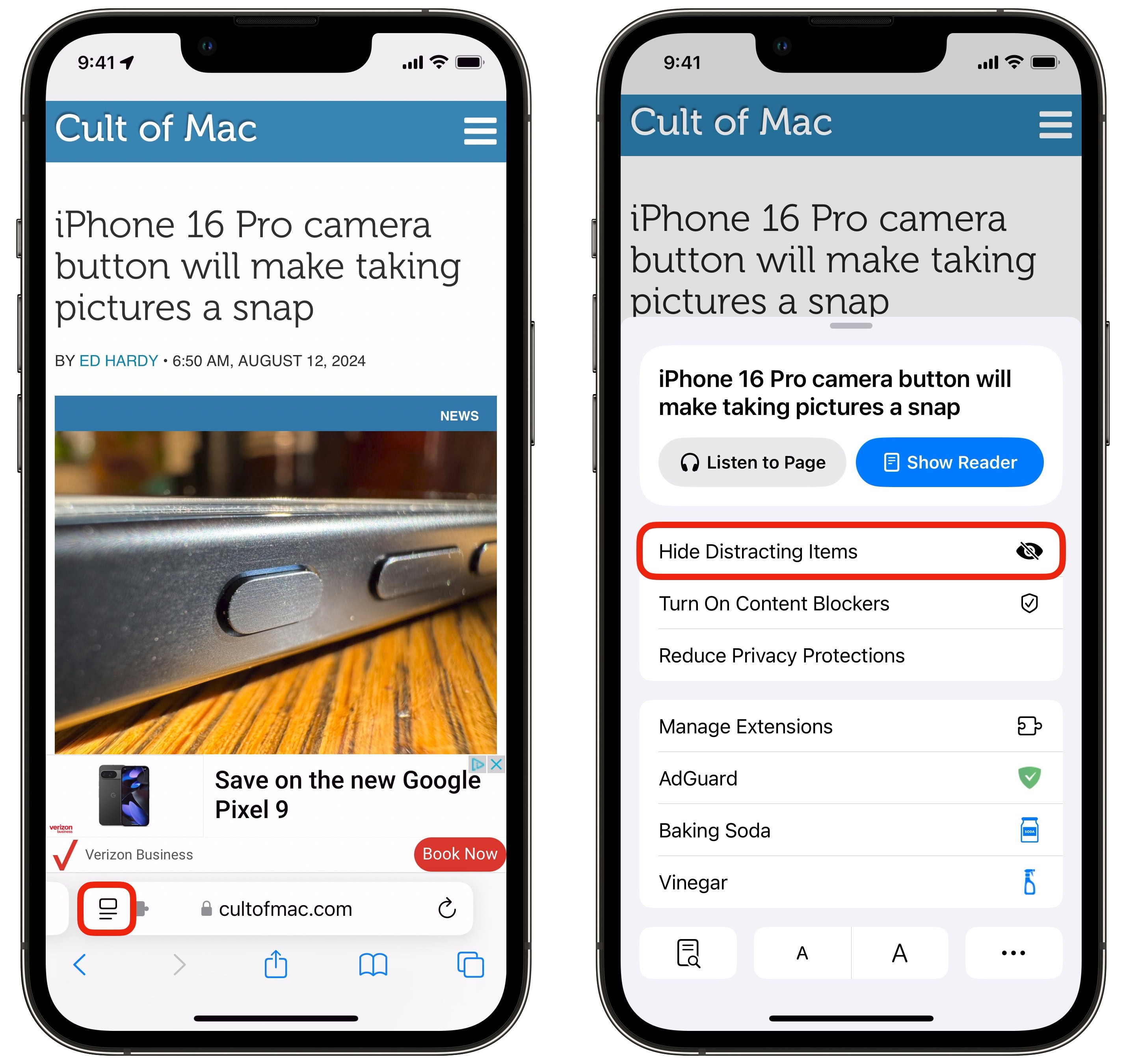
In Safari on your iPhone, tap the Page Menu (the button to the left of the address bar) and tap Hide Distracting Items.
If you don’t see the option there, it’s possibly buried in the overflow menu. Tap the More button (⋯) in the bottom-left and tap Edit in the upper right. Add + Hide Distracting Items to add it as one of your favorites, then tap Done. Tap Done again, and tap Hide Distracting Items back in the Page Menu.
Tap to remove ads and other distracting elements on a web page
Once you turn on the Hide Distracting Items feature, you can tap to select an element on the page, then tap Hide. It’ll burst into dust and disappear, like Thanos snapped it away. Tap Cancel if you accidentally hide something by mistake.
You can hide as many page elements as you want, then tap Done to enjoy your webpage in distraction-free bliss. Your hidden items should stay hidden even after you reload the page or come back later.
Unhide what you’ve hidden
If you go too far and want to undo what you’ve hidden, that’s easy. Open the Page Menu again, then tap Show Hidden Items. Pages with items you’ve hidden will have a small crossed-out-eye icon in the address bar.
If there’s a mistake in how the page works after hiding an element, you can also tap Report Distraction Control Issue. This lets you provide feedback to Apple if:
- Items on the page can’t be selected.
- Items on the page can’t be hidden.
- Your edits don’t apply after reloading the page, as they should.
Tap Report to send your feedback.
More advanced features in Safari
- 5 secret tips and tricks in Safari on iPhone
- Crank up Safari’s privacy to the max
- Share a link with quoted text in Messages
- How to translate an entire website to English directly from Safari
We originally published this post on how to remove iPhone ads with Safari’s Hide Distracting Items feature on February 6, 2025. We updated the information on March 20, 2026.

D. Griffin Jones is a writer, podcaster and video producer for Cult of Mac. Griffin has been a passionate computer enthusiast since 2002, when he got his first PC — but since getting a Mac in 2008, he hasn’t turned back. His skills in graphic and web design, along with video and podcast editing, are self-taught over 20+ years. Griffin has a bachelor’s degree in computer science and has written several (unpublished) apps for Mac and iOS. His collection of old computers is made up of 40+ desktops, laptops, PDAs and devices, dating back to the early ’80s. He brings all of these creative and technical skills, along with a deep knowledge of Apple history, into his work for Cult of Mac.

